
If no VPN connection has been used before, please write a ticket to IT so that this can be set up!
Step 0:
The VPN connection only works outside the ZMT network. (eduroam, ICE, at home, etc.)
Step 1:
Right-click the FortiClient icon  and select 'Connect to "ZMT VPN"'.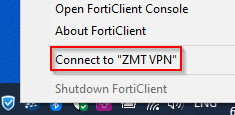
Should the right click menu not show up then just double click on the FortiClient icon.
Step 2:
The FortiClient should open with the 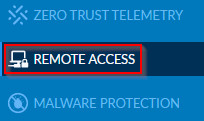 selected.
Check the box "Save Password" and press "Connect"
Here the short username (e.g. xyz) and personal password need to be entered
Step 3:
Quick check to see if the VPN-Connection was established.
This can be done using the FortiClient icon  , the icon should have little padlock now.
Step 4:
After the username and password were entered and the 'Save Password'-checkbox was checked, it is possible to start and stop the VPN connection with a right-click on the FortiClient icon. To establish the VPN connection 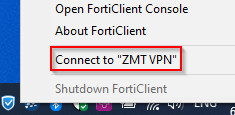 and to disconnect.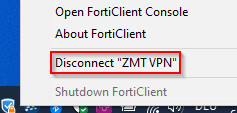
The VPN connection can also be stopped directly in the FortiClient through the Remote Access tab and the Disconnect button.