
To use the "Presenter View (notes)", you will need the new version of Clickshare.
Clickshare (old view -> new view):
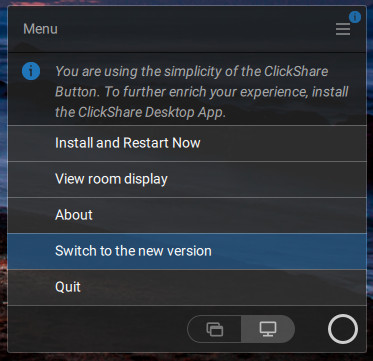
- In the Clickshare menu (located at the bottom right of the screen), click on the three lines with the blue icon. [Picture 1]
- Select "Switch to the new version". [Picture 2]
- Select "Switch Now".
-
Clickshare should now open in a larger window (new view).
Picture 1:

Picture 2:
Clickshare (new view):
- Plug the Clickshare dongle into your laptop and wait for the Clickshare window to appear.
- You can choose between “Share a screen (top)“ and “Share a window (bottom)“.
-
To display the “Presenter View (notes)”, you must select Powerpoint under “Share a window (bottom)“.
PowerPoint:
- The desired presentation is then opened and launched in Microsoft Office PowerPoint.
- Next, right-click in the presentation and select“Presenter View”.
Presenter View:
- The notes should now be displayed on the laptop screen, whilst the presentation continues to be shown on the projector.